When a touch screen stops responding, first rule out the things that are not parts: restart the phone, take off the case and screen protector, clean and dry the screen, unplug the charger or any accessory, and check touch settings and software updates. Then run the built-in test where the phone has one: Samsung Members Phone diagnostics on Galaxy, Touch diagnostics on Pixel 9 models. If touch still fails across the whole screen or in one area, the usual fix is a new screen assembly, because the touch layer (digitizer) is laminated to the display. If a new screen behaves the same way, check the display connector and the logic board before ordering another screen.
Where does touch sensing happen in a phone?
The touch layer, or digitizer, sits between the cover glass and the display panel. In modern phones these layers are laminated together and sold as one screen assembly, joined to the logic board by a flex cable. That gives three places a touch fault can come from: the screen assembly itself, the connection between its flex and the board, and the board or software behind it. Most of the checks below exist to rule out software, settings and accessories before you pay for a part.
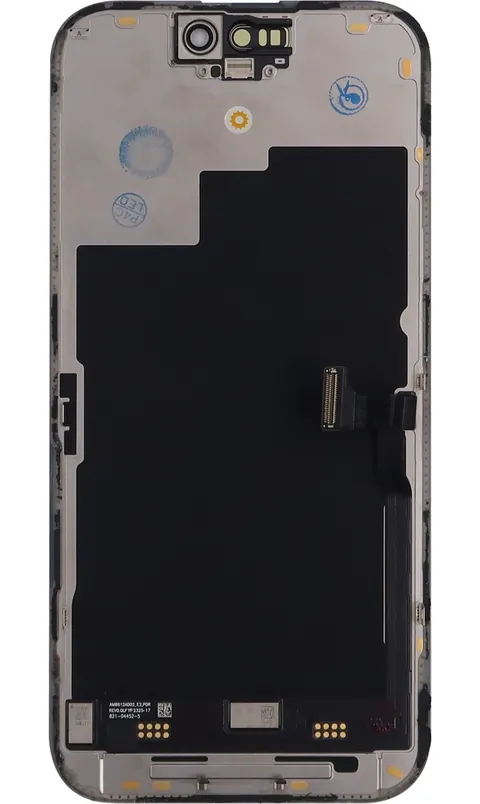
What should you rule out before replacing the screen?
Apple, Google and Samsung publish similar first steps. Work through them in this order, testing touch after each one.
- Restart. Apple and Samsung both start here. Samsung says a temporary system error can stop the touchscreen responding normally; on Galaxy, hold the Side key and Volume down key together for more than 7 seconds.
- Case, screen protector and stickers. All three manufacturers say to remove the case or screen protector and test again. Google adds stickers over the screen or sensors. Samsung says protective glass or film glued only at the edges may not sit flat, so parts of the screen respond intermittently, and that if touch works with the attachment removed, the phone has no touch screen problem.
- Clean, dry screen and bare fingers. Apple says the screen should be free of debris and water. Samsung says moisture, humid conditions, gloves, dirty hands, sharp objects or fingertips can make touch misbehave. Google says to take gloves off.
- Charger and accessories. Apple says to disconnect Lightning or USB-C accessories; if the screen then works, try a different outlet, cable or charger. Samsung says a damaged charger may cause the touch screen to malfunction.
- Touch and accessibility settings. On Galaxy, Samsung lists TalkBack, changed touch and hold delay, tap duration or ignore repeated touches, a triple-tap Magnification shortcut, and full screen gestures as settings that can block or slow touch input.
- One app or every app. Google says that if the problem happens only in one app, contact the app developer. Google and Samsung both suggest Safe mode to see whether a downloaded app is the cause.
- Software updates. Google and Samsung both list installing system and app updates.
How do you run the built-in touch test?
| Phone | Built-in test | Settings worth checking |
|---|---|---|
| Samsung Galaxy | Samsung Members, Phone diagnostics, Touch screen | Touch sensitivity on (for a screen protector); TalkBack off; touch settings at defaults; Magnification shortcut; full screen gestures |
| Google Pixel 9, 9 Pro, 9 Pro XL | Settings, Display and touch, Touch diagnostics | Adaptive touch (Display and touch, Touch sensitivity); gesture navigation sensitivity |
| Google Pixel 8a and earlier, including Fold | None listed on Google's touch page | Screen protector mode (Display and touch, Touch sensitivity) |
| iPhone | None listed on Apple's touch page | Restart, clean screen, accessories unplugged, case and protector off; then Apple says the phone might need service |
Samsung lists a factory data reset only as a last resort, after the steps above and with your data backed up first.
What does each symptom point to?
| What you see | Likely cause | Next step |
|---|---|---|
| Touch works once the case or protector is off | The accessory | Use a protector that sits flat, or turn on the protector sensitivity setting (Galaxy, Pixel) |
| Touch fails only while charging | The charger, cable or outlet | Test with a different, undamaged charger and cable |
| Touch fails in one app only, or works in Safe mode | An app | Update or remove the app; contact its developer |
| Taps slow, ignored or read as gestures | Touch, accessibility or gesture settings | Restore touch settings to defaults; turn off TalkBack, the triple-tap Magnification shortcut or full screen gestures |
| Image is fine but part or all of the screen ignores touch after the checks above | The touch layer in the screen assembly, or its flex | Run the built-in test, then replace the screen assembly |
| Cracked glass and no response to touch | Damaged screen assembly | Samsung says a cracked screen or one with no response may need repair: replace the screen assembly |
| Touch faults started right after a screen replacement | The new screen, or how it was connected | See the next section |
Touch problems after a screen replacement
A screen that was just replaced and does not respond properly points back at the repair: the new part, or the connection between its flex and the board. Before ordering another screen, reseat the display connector and check the flex for damage, because a second screen will not fix a connection fault, and if a new screen shows the same fault, the logic board may be involved.
On iPhone, Apple lists the touch problems a non-genuine display can cause: Multi-Touch not responding on parts of the screen, missed touches or touches registering in the wrong place, touches registering during a call, the display not turning off during calls, and accidental edge or palm touches. Apple also says a non-genuine display can cause problems after an iOS update that contains display updates. On iPhone 11 and later, excluding iPhone SE (2nd and 3rd generation), Settings, General, About shows Parts and Service History after a repair; the display is listed as Genuine, Used, Finish Repair or Unknown. See what each label means.
For a bench-level walkthrough after a swap, Parts4Cells has a guide to fixing touch that stops working after a screen replacement, and a separate one for touch screen problems after a screen replacement on Android phones.
Which part do you replace?
- Touch dead or erratic after every check, image fine: the screen assembly. The touch layer is not sold on its own for most modern phones.
- Cracked screen with touch problems: the screen assembly.
- A new screen with the same fault: the connector, the flex or the logic board, not another screen.
- Touch works with the case, protector, charger or an app out of the picture: no part; change the accessory, charger or app.
Screens are sold by exact model, so find the model number before you order, and read the screen grades so you know whether the replacement is an original or an aftermarket part.
Questions
Can you replace only the digitizer on a modern phone?
On most modern phones the touch layer (digitizer) is laminated to the display, so the two are replaced together as one screen assembly. Separating them takes dedicated equipment that most shops and owners do not have.
Why does my touch screen stop working only while charging?
Apple's first steps include disconnecting Lightning or USB-C accessories and, if the screen then works, trying a different outlet, cable or charger. Samsung says a damaged charger may cause the touch screen to malfunction. Test with a different, undamaged charger before replacing any part.
Does a screen protector stop touch from working?
It can. Apple, Google and Samsung all list removing the screen protector or case as an early step. Samsung says protectors that are glued only at the edges may not sit flat, so some areas respond only some of the time. Galaxy and Pixel phones also have a setting that raises touch sensitivity for use with a protector.
How do you test the touch screen without opening the phone?
On Galaxy, open Samsung Members and run Phone diagnostics, then select Touch screen. On Pixel 9, Pixel 9 Pro and Pixel 9 Pro XL, open Settings, Display and touch, Touch diagnostics. Apple's touch troubleshooting page lists no built-in touch test, so on iPhone work through its checklist, then arrange service if touch still fails.
Related guides
Sources
- Apple Support: If the screen isn't working on your iPhone or iPad
- Apple Support: About genuine iPhone displays (published October 22, 2026)
- Pixel Phone Help: Fix touch and response issues on your Pixel screen
- Samsung US: Troubleshoot touchscreen issues on a Samsung Galaxy device
- Samsung UK: What to do if your Galaxy phone's touch screen doesn't work properly
Sources checked November 22, 2026. Menu names, test apps and model lists change with software updates and new phones; confirm them on the linked pages.