Galaxy, iPhone and Pixel phones block wired charging when they sense liquid (or, on Pixel, debris) in the port, so the pins do not corrode. On a dry phone the alert usually clears without any part: let the port air dry, restart, try a known good cable, and on Galaxy or Pixel clear the USB Settings cache. The part that fixes an alert that still will not clear is the charging port flex (iPhone) or charging port sub-board (many Android phones), matched to the exact model number. If the alert follows one cable or accessory, replace that instead.
Which part fixes a moisture alert that will not clear?
Most alerts on a dry phone need no part at all. Work down this table: only the last row is a parts repair, and it is the one to reach after the others are ruled out.
| Cause | How you can tell | Fix | Part to replace |
|---|---|---|---|
| Water still in the port, or humid air | The alert clears once the phone has dried. Samsung says high humidity alone can trigger it. | Dry in moving air (Samsung: about 1 to 2 hours; Apple: allow up to 24 hours), then restart (Samsung) | None |
| Lint or debris in the port | Visible with a light; Pixel's message names debris | Hold the port face down and tap the phone gently against your hand (Google). Apple, Samsung and Google all say not to put objects into the port. | None |
| A damaged cable or accessory | The alert appears only with one cable or accessory (Apple) | Stop using it and replace it | The cable or accessory, not the phone |
| A stuck USB setting (Galaxy, Pixel) | The port is clean and dry but the alert stays | Clear the cache of the USB Settings app (Samsung, Google) | None |
| A corroded, burned, melted or worn port | Visible damage (Google), or the alert with any known good cable on a phone that has dried for a day (Apple) | Port replacement or manufacturer service | Charging port flex on iPhone; charging port sub-board on many Android phones, for the exact model number |
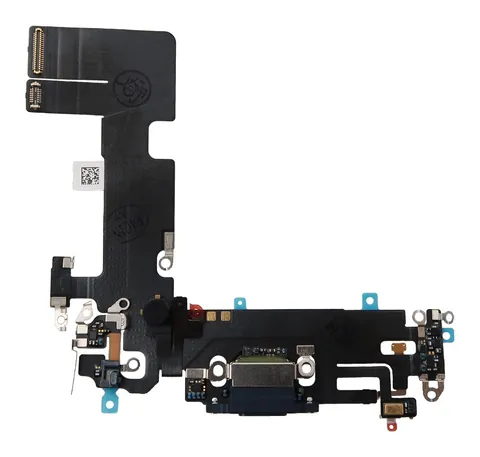
iPhone 13 charging port flex
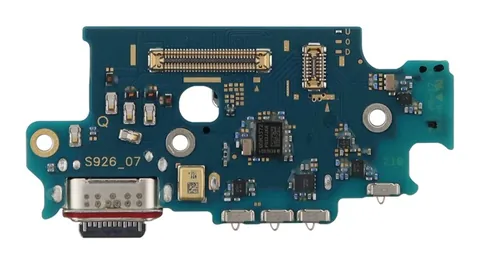
Galaxy S24+ (S926U) charging port board
A new flex or board replaces the connector and its contacts, so it fixes an alert caused by a damaged port. It will not fix an alert caused by a bad cable, a stuck setting or water elsewhere in the phone, which is why the rows above come first.
What does the alert mean on each brand?
All three brands block wired charging while the phone senses liquid in the port (Google adds debris), and lift the block once it clears. The wording and the advice differ.
| Brand | What you see | Which phones | Charging while it shows |
|---|---|---|---|
| Samsung Galaxy | A water drop icon and a moisture warning when a charger is plugged in | Devices rated IP68, according to Samsung | Wired charging blocked; wireless charging still works on supported models |
| iPhone | "Charging not available" or "Liquid Detected in Lightning Connector" or "Liquid Detected in USB-C Connector", depending on the port and accessory | iPhone XS, XS Max, XR and later | Wired charging blocked unless you override it in an emergency; Qi wireless charging once the back is dry |
| Google Pixel | "Liquid or debris in USB port" (and a separate "Unplug charger" message for overheating) | Pixel phones; Google does not list models | USB port disabled until the phone shows "OK to use USB port" |
Apple and Samsung both give the same reason: charging through a wet connector can corrode the pins and cause permanent damage.
Why does it show on a dry phone?
The manufacturers name a few causes besides an obvious splash:
- Humidity. Samsung says high humidity can trigger the warning without direct contact with water.
- Debris. Google's message covers debris as well as liquid, and lint packed into the port is a common cause of charging faults in general.
- One bad cable or accessory. Apple says that if the alert appears every time with one particular cable or accessory, that cable or accessory may be damaged.
- A stuck setting. Samsung and Google both suggest clearing the cache of the USB settings app when the alert stays on a dry phone.
- Damage to the port. Google lists a burned, melted or corroded port as a repair case, and Apple says an alert with any Apple cable on a dry iPhone may need service.
What should you do first?
- Unplug the power adapter from the wall, then the cable from the phone (Google gives this order, as the cable can be warm).
- Remove loose liquid by tapping the phone gently against your hand with the port facing down (Apple and Google), or a few light shakes with the port down (Samsung).
- Let it dry in moving air. Do not use a heat source or compressed air, and do not put the phone in rice (Apple). Do not put anything into the port, including a cotton swab or paper towel (Apple, Samsung and Google). Lint is cleared the same way as water: port down, a gentle tap against your hand (Google).
- Wait, restart, then retry. Samsung says water usually evaporates from the port in about 1 to 2 hours and suggests restarting once the phone is dry. Apple says to wait at least 30 minutes and allows up to 24 hours.
- Charge wirelessly in the meantime if the phone supports it and its back is dry.
- Try a second cable and charger you know works. If a dry iPhone still will not charge, Apple suggests unplugging the adapter from the wall and connecting everything again.
- Clear the USB settings cache on Samsung or Pixel if the alert stays on a dry phone: Settings, Apps, show system apps, USB Settings, Storage, Clear cache (menu names vary slightly by phone).
If any liquid other than fresh water got into the port, Samsung says to rinse it with fresh water and dry it thoroughly with a soft cloth before trying again.
When is it the port, and which part do you need?
Treat it as a hardware fault when the alert returns on a phone that has dried for a day, with a known good cable, after the cache step, or when you can see green or white corrosion, scorch marks or a melted connector. At that point the manufacturers send you to service.
In parts terms, the port is rarely sold on its own. On iPhone it sits on a charging port flex, and on many Android phones it sits on a small sub-board that often also carries the bottom microphone. Replacing that flex or board replaces the connector and its contacts. Two checks before ordering:
- Match the exact model number, not only the phone's name, because some models have separate regional versions of the port flex. See how to find the model number.
- Diagnose before you replace. If the phone will not charge by cable or wirelessly, the battery or board may be the problem rather than the port.
For a worked example on one phone, this Galaxy S23 FE charging port guide walks through a Samsung port replacement. Replacement ports and boards are listed by model in catalogs such as this charging ports category.
Questions
What part fixes a moisture detected warning on a dry phone?
Usually none: drying, a restart, a known good cable and, on Galaxy or Pixel, clearing the USB Settings cache clear most alerts. When the alert stays on a clean, dry phone with any good cable, or the port looks corroded or burned, the part is the charging port flex on iPhone or the charging port sub-board on many Android phones, matched to the exact model number.
Can a moisture alert be fixed without replacing the port?
Often yes. Samsung and Google both describe clearing the cache of the USB Settings app when the warning stays on a dry phone, and Apple says an alert that appears with only one cable or accessory points to that cable or accessory.
Can you charge the phone anyway?
Apple advises against charging a wet iPhone, but in an emergency you can reconnect and choose to override liquid detection. Samsung describes the block as protection against corrosion and suggests wireless charging while the port dries. Google describes no override: you wait until the phone says the USB port is OK to use.
Does putting the phone in rice help?
Apple says not to, because small rice particles can damage the iPhone. Leave the phone in a dry place with airflow instead.
Does wireless charging still work?
Yes on phones that support it. Samsung says wireless charging is not affected by moisture in the port, Apple says a Qi certified charger can be used once the back of the iPhone is dry, and Google's page covers only the USB port without mentioning wireless charging.
How long should you wait before calling it a fault?
Apple says to wait at least 30 minutes and allows up to 24 hours to dry fully. Google says to contact support if the Pixel message lasts two hours or more. If the alert keeps returning on a clean, dry phone with a known good cable, treat it as a port or service problem.
Related guides
Sources
- Apple Support: If you see a liquid-detection alert on your iPhone (published October 30, 2024)
- Samsung US: Moisture in water-resistant Samsung phone or tablet's charging port
- Samsung Support: My device displays a water drop icon and will not charge (updated April 28, 2026)
- Pixel Phone Help: Fix "Unplug charger" or "Liquid or debris" message
Sources checked November 20, 2026. Alert wording and menu paths change with software updates; confirm them on the linked pages.